Navigate to your site report via the following methods:
- On the "Monitor" page, click on the site via the map
- From anywhere in the portal use the keyboard shortcut "Ctrl + k" and type in the site name
- Using the hierarchy icon in the top right hand corner of the portal, search your site from there.

- Understanding your Site Report -
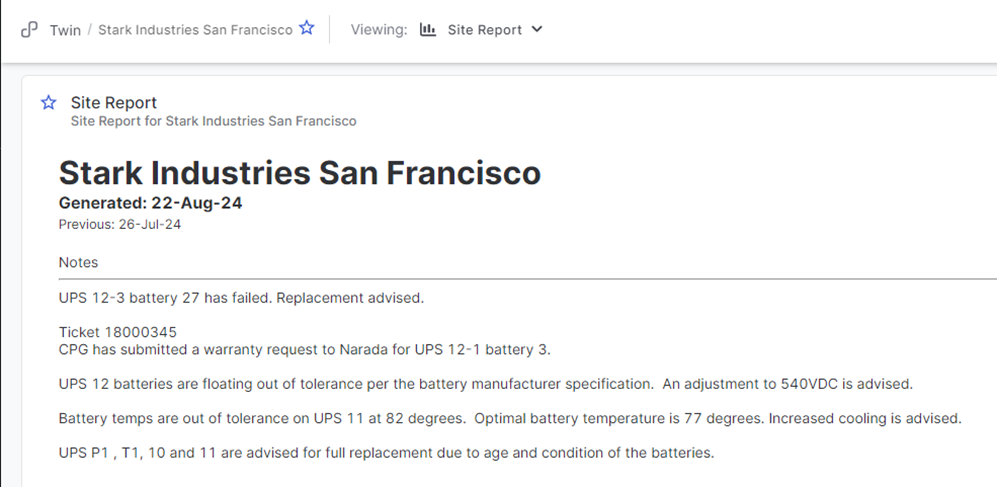
The Report Notes section will list all actionable items with next steps.
- All new items for that week will be listed after the word "NEW"
- There will be generic notes at the bottom of your report to remind you to look at your Corrective Actions section for a more detailed list of critical batteries, hardware issues, and temperature alarms.
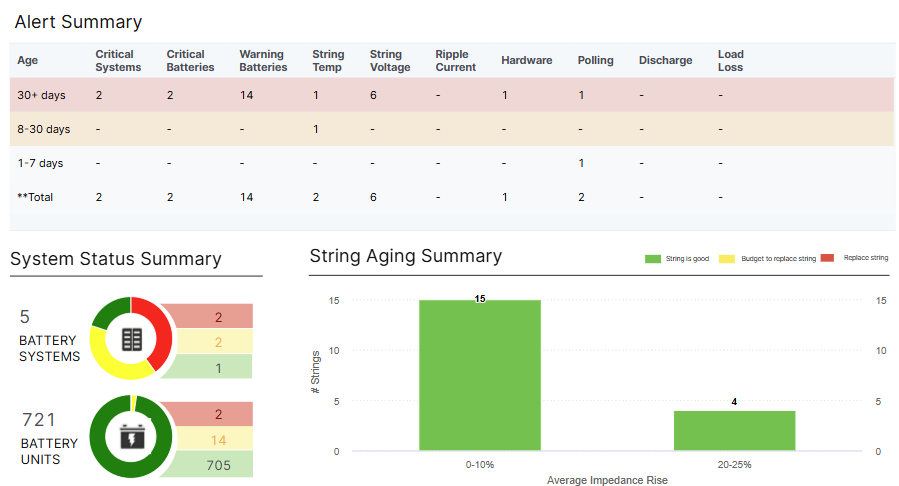
Alert Summary - Site Level
Your alerts are summarized by category (top) and by Age (left) or how long they have been active.
You can also see your System Status Summary and String Aging Summary in this area as well.
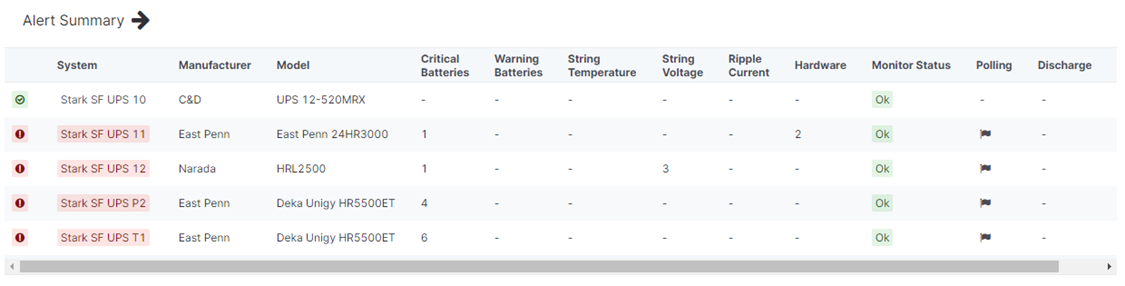
Alert Summary - System Level
This summary shows you the status of your site at the system level.
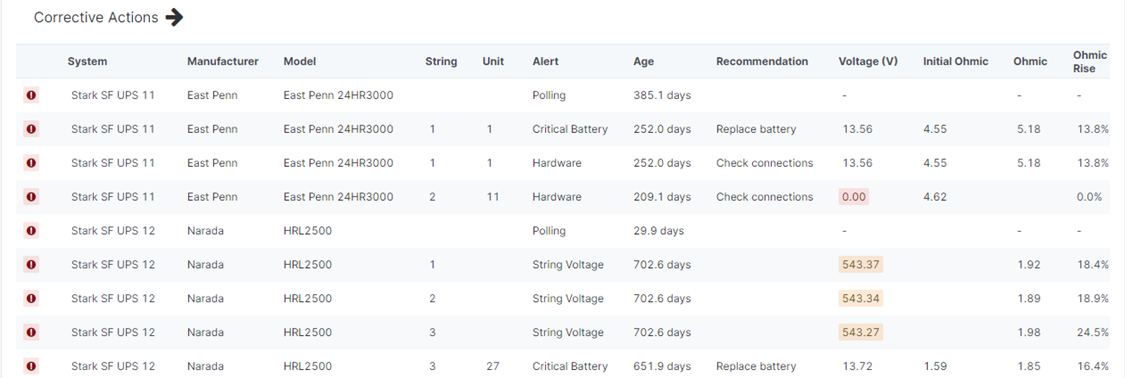
Corrective Actions
This area will break down every alert that requires action from the site.
All level of alerts will be listed here from site to string to battery level alerts along with the recommended next steps.
Was this article helpful?
That’s Great!
Thank you for your feedback
Sorry! We couldn't be helpful
Thank you for your feedback
Feedback sent
We appreciate your effort and will try to fix the article