Troubleshooting a CU (Control Unit) Error On a Cellwatch Battery Monitoring System
There are two possible things that can cause a CU error. There can be a problem with the fiber optic network or there can be a problem with one of the DCMs on the fiber loop. If the CU investigation indicates that the DCM loop is faulty then it is necessary to identify where the break in the fiber exists. There can be a break from the IBMU to the CU or it can be between the IBMU and the DCMs. First determine if the break is from the IBMU to the DCMs.
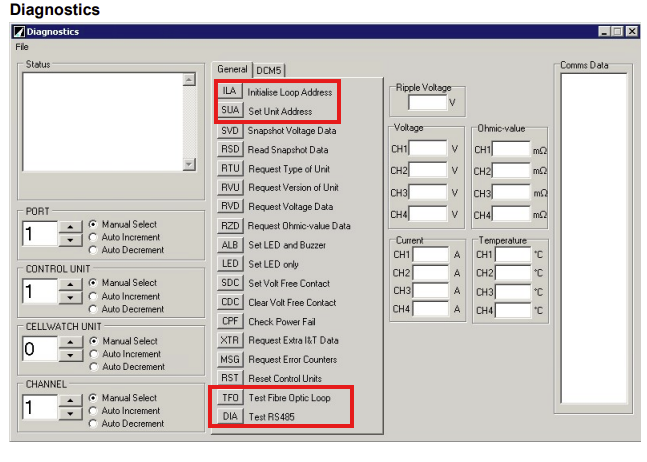
Test the Control Unit
- From the Cellwatch application open Diagnostics. The password is deafcat.
- If you know which Control Unit (CU) you are getting the error on, then set the Control Unit number to the corresponding CU. If you do know which CU has the error then start at Control Unit 1.
- Once the CU number is set, select ILA (Initialize Loop Address) once in the diagnostic window. Follow this by selecting SUA (Set Unit Address).
- If it does respond to the CU and there is no error then continue the test on the next CU. The status box should read “Units on this loop: ##” where ## is the number of DCM’s found on that fiber optic loop.
- If the CU does not respond satisfactorily to the ILA and SUA test, the Diagnostic Status message will say “Error: No loop back”. A No loop back error indicates a problem with the fiber optic loop or a problem between the IBMU and the CU.
- From the Diagnostics screen select the DIA button. Check for one of the following result.
- a. Fault RS485 – this indicates there is a problem with the RS485 to the CU.
- b. RS485 Okay – the communication from the CU to the DCMs is okay and there is a faulty DCM Loop.
Test for a Faulty DCM Loop
There are two possible causes for a faulty DCM loop. 1)There can be a problem with the fiber optic network or 2)There can be a problem with one of the DCMs in the loop. If the CU investigation indicates that the DCM loop is faulty then it is necessary to identify where on the loop the fault lies.
- From the Diagnostic window select the TFO (Test Fiber Optic Loop) button. Pressing this sends pulses of light around the fiber loop. The TFO command is like a toggle switch, once pressed the function is turned ON, if pressed again, the function is turned off.
- Check the fiber coming out of the CU to see if the command is working. You should see a RED light flash about once every second. You can check this by checking the fiber that goes to the black connector on the first DCM of the loop.
- Break the loop half way around the loop by disconnecting the black fiber optic input connector from the DCM.
- Look into the outlet for the connector and check for the red light pulse (about once every second). You may be able to syncronise a pulse with DCM beeps; however that can be hard to distinguish sometimes.
- If you see the light pulse then there is no break to that point in the fiber loop. Reconnect the fiber to the DCM and move along your loop and repeat the test. If you do not see the light then work your way backwards on the string. Continue testing sections of the fiber loop until you identify where the break is.
- Once you identify your break location, check that the fiber connectors are seated properly. Loosen the collet and reseat the fiber all the way home. If the fiber is seated correctly, the DCM may be faulty or misconnected. When the DCM is correctly connected to the battery it should emit an audible beep as well as flash the LED’s to indicate a startup sequence. If the DCM is connected correctly and fails to emit an audible sound and/or the LEDs on the DCM do not flash, then the device may be faulty.
- Once the DCM is fixed, check the rest of your fiber loop to see if another DCM may be miswired/faulty. If the signal is returning to the control unit (check fiber going to black connector in the CU) then you have a complete fiber optic loop. Turn the TFO command off and perform another SUA.
- If needed, the ALB function on the Diagnostics window can be used to sound the DCM sounder and flash the DCM LEDs successively around the loop to aid in identifying a fault location.
Was this article helpful?
That’s Great!
Thank you for your feedback
Sorry! We couldn't be helpful
Thank you for your feedback
Feedback sent
We appreciate your effort and will try to fix the article